Wednesday, July 22, 2015


Wednesday, July 1, 2015
General Ledger - Chart of Accounts
Chart of Accounts
The Chart of Accounts (COA) your General Ledger Accounts that you create and maintain. The Chart of Accounts is part of Accounting Setup Manager.
- View the Chart of Accounts (View the List of General Ledger Accounts)
- Add a New General Ledger Account in the Chart of Accounts
- Change an Existing General Ledger Account in the Chart of Accounts
Viewing the Chart of Accounts
To view the Chart of Accounts Navigate to General Ledger Setup--> Financials-->Accounting Setup Manager --> Accounting Setup
Adding a New General Ledger Account
If you are exporting to another system, your Account Names and Account Numbers between TRACT and the other system, must match precisely.
This procedure starts in the Chart of Accounts pane.
To create or add a new General Ledger Account, perform the following steps:
- In the Chart of Accounts pane, click on Add. The GL Account Information window opens.
- Enter the following information:
| Account Number | Required. The number you designate for this General Ledger Account. This account number has a set number of digits, such as 4, 5 or any other. The Account Number must match the number in an external system to which you are exporting. For audit purposes, after G/L Account is created, Account Number cannot be changed. |
| Name | Required. The name of this General Ledger Account. This name must match precisely to the name of the corresponding General Ledger Account in the external system to which you are exporting. |
| Account Type | Required. Select Asset, Liability, Equity, Revenue, or Expense. For audit purposes, after G/L Account is created, Account Type cannot be changed. |
| Account Category | Required. Your choices for Account Category depend on the Account Type you selected. TRACT provides you with over a dozen pre-defined Account Categories. If you need to add an Account Category, click on Add Category button. See Account Categories for further information. |
| Account Designation | Indicates how to assign the account in the G/L. Depends on the Account Type chosen:
|
| Description | A description for the GL Account. |
| Parent Account | If applicable. If a Parent Account is assigned, it can be changed, but not removed. |
| Posting Allowed | Check mark means this GL Account can be used for posting. No check mark means the GL Account can NOT be used for posting. |
| Contra Account | Check mark defines this GL Account is a contra account. No check means that the GL Account is a regular account. |
- When finished entering the information, click Finish. The GL Account Information window closes. The GL Account shows in the Chart of Accounts pane. Continue this process until you have completed your Chart of Accounts and have all your General Ledger accounts entered.
Changing an Existing General Ledger Account
This procedure starts in the Chart of Accounts pane.
For any G/L Account, the G/L Account Number, the Account Type, and the Currency cannot be changed. Create new G/L Accounts in a Chart of Accounts. All other information can be changed.
To change an existing General Ledger Account, perform the following steps:
- In the Chart of Accounts pane, click on the Account Number of the General Ledger Account that you want to change. The GL Account Details page opens.
- In the G/L Account Details pane, click on Edit. The GL Account Information window opens.
- Some information cannot be changed and that is shown. Change any of the other information:
| Account Number | can NOT be changed. |
| Name | Required. The name of this General Ledger Account. This name must match precisely to the name of the corresponding General Ledger Account in the external system to which you are exporting. |
| Account Type | For audit purposes, can NOT be changed. |
| Account Category | Required. Your choices for Account Category depend on the Account Type you selected. TRACT provides you with over a dozen pre-defined Account Categories. If you need to add an Account Category, click on Add Category button. See Account Categories for further information. |
| Description | A description for the GL Account. |
| Parent Account | If applicable. If a Parent Account is assigned, it can be changed, but not removed. |
| Posting Allowed | Check mark means this GL Account can be used for posting. No check mark means the GL Account can NOT be used for posting. |
| Contra Account | Check mark defines this GL Account is a contra account. No check means that the GL Account is a regular account. |
- When finished changing the information, click Finish. The GL Account Information window closes. The changes show in the G/L Account Details pane.
Segment Qualifiers and Flexfield Qualifiers are important part of COA
Sunday, June 28, 2015
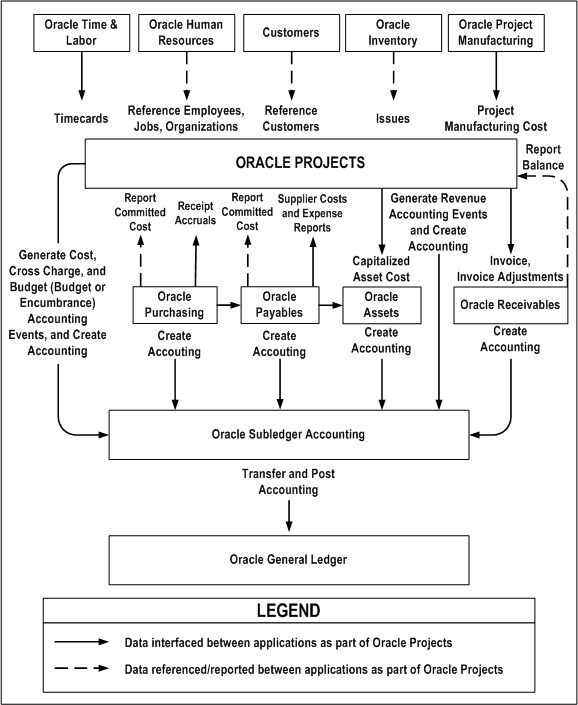
Inventory Transactions Transfer to Oracle Projects using Oracle Project Manufacturing
1. Define Projects
2.Assign Project Parameters ( ensure to select Project, Inventory Organization, Cost Group project)
3. You can use Borrow Pay methods to transfer costs to Projects
Inventory Transfer from Projects to Projects
Inventory transfer from Projects to non projects sub inventory
Inventory transfer from non projects sub inventory to Projects locator
All project related material will be purchased as expense to the project on a separate purchase order.
In some cases, especially where the material might have a longer lead time, the client was able to satisfy the immediate project requirement by using existing material that they already had in their inventory.
We will utilize the miscellaneous transaction to issue the material from the inventory location directly to the project accounts. First, you will need to create a new user defined transaction type that will be associated with the miscellaneous transaction. This transaction type will have the Project flag turned on which indicates that it will be associated with a project.

As with all transactions that are project related, you must make sure that the project manufacturing parameters are set for the project to allow these issues and costs to flow over to the project costing. You will assign the organization and the cost group that will be used for the miscellaneous transaction in the project manufacturing parameters form.

Next, we also will create an account alias that we will be able to use for the transaction source when we perform the miscellaneous issue of the material. This will define the account that will be debited when we issue the material.

Now, we are ready to perform the material transaction to remove the material from the regular inventory accounts and transfer the material directly to the project and the project accounts.
Navigate: Inventory > Transactions > Miscellaneous Transact
- Tab from the date field (accept default)
- In the Transaction Type field, select Inventory Issue to Projects
- In the Source field, select PROJECT WIP as the source
- Click on the Transaction Lines button (the Inventory Issue to Projects window will open)

- Enter the item number that you are transferring to the Project in the Item field
- Tab to the Subinventory field, select the subinventory where the item is currently located
- Tab to the Locator field, select the locator for the subinventory
- Tab to the Quantity field, enter the quantity to be transferred
- Tab to the Source Project field, select the project number to be charged
- Tab to the Source Task field, select the task number to be charged
- Tab to the Expenditure Type field, select the expenditure type (ex. Misc. Charge)
- Tab to the Expenditure Org field, select the expenditure organization (ex. Milwaukee Service Center)
- Save the record

This will remove the item from inventory and perform a credit to the inventory account and debit the Project WIP account.
Using this simple transaction, we were able to allow this client the ability to handle a specific exception to their standard rule;
Subscribe to:
Posts (Atom)